The User Experience of Apple’s 3D Touch
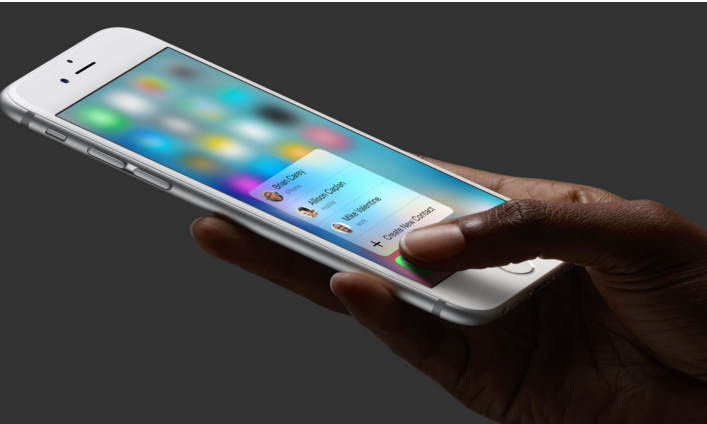
Apple continues to feed our desire for faster, more efficient technology. Get ready to press a bit harder to work a little faster.
New users of the iPhone 6s and 6s Plus, released in September, have the chance to experiment firsthand with a new dimension to multi-touch gestures like swipe, pinch, and drag. 3D Touch eliminates extra taps to perform the same actions, ideally helping us to be more productive and possibly having greater ramifications on user experience.
“Peek and Pop” and “Quick Actions” are the two main additions that users can access across Apple apps and several third-party apps. For example, you can press on a link to preview a website (i.e. Peek) and press harder to open it (i.e. Pop). A press on a Home screen app or a swipe up while Peeking at a website, email, etc. also opens a four-item list of common actions users can perform.
This new functionality appears inherently beneficial, but from a user experience perspective, it has both positive and negative consequences. Let’s dig in.
How It Works
For those who may not have upgraded to the latest devices yet, 3D Touch builds on the foundation laid within Force Touch, the pressure-sensitive feature of the Apple Watch and MacBook. The capacitive sensors in the backlight of the Retina HD display of the phone measure the distance between the cover glass and backlight to assess how much pressure users put on the screen. Combine this with the Taptic Engine that powers Force Touch, and you get instant feedback (e.g. the screen blurring depending on how hard you press).
The interconnected hardware and software provide two main experiences:
Quick Actions
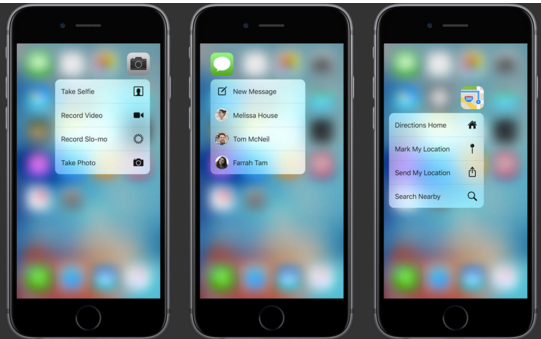
Press lightly on an app icon on the Home Screen to view a list of up to four Quick Actions you can access then and there. Slide your finger to one and press harder to perform common actions like taking a selfie in the Camera app. Or text recent contacts in the Messages app.
Peek and Pop
.webp)
Open up the Mail app and press lightly on an email to Peek or preview it. Press a little harder on the preview and Pop into that email. Or just release and the email remains unread in your list. You can perform this same action with web links to preview the websites, with addresses to see them on a map, and more.
While Peeking, you can also swipe up to view a short list of Quick Actions below the email preview. Reply, forward, mark, etc. without having to first open the email. Expect various other Quick Actions when you Peek at other types of content.
Recent Additions
Apple has also recently added more helpful features, including:
- Press harder on the keyboard within apps like Notes and Mail to turn it into a trackpad and move the cursor wherever you need it.
- Press on the left side of the Home screen to multitask and see all the apps you have open, cycle through them, and switch easily between apps.
- Press harder in the Notes app while drawing to produce thicker lines.
The Learning Curve
Obviously, 3D touch is great for fast learners. But how hard to press for Peek versus Pop, and how to differentiate between pressing and a long hold takes a little practice. Additionally, how much practice you get depends on what apps you use.
3D Touch is available with Apple apps, but consider how many third-party apps you use compared to the apps native to your phone. Developers have steadily been incorporating 3D Touch functionality into major third-party apps like Facebook, Twitter, Pinterest, Instagram, Dropbox, and Evernote. However, it will take time for a multitude of apps to build in 3D Touch functionality.
Another big question is how these third-party developers will use the possibilities of 3D touch within their apps. Will there be consistency about which gestures perform what actions across multiple apps? Many apps have added Quick Actions to their icons on the Home screen. But Instagram was one of the first to add Quick Actions and Peek and Pop within the app for previewing photos and performing common actions such as like or comment.
So Is It a Big Deal?
The 3D Touch gestures only save seconds when you perform tasks on your iPhone 6s or 6s Plus, but those seconds can add up. And 3D Touch opens the door to new ways you can interact with touch screens, from light pressure opening a menu of Quick Actions to harder pressure perhaps denoting a favorite item.
While it’s not necessarily a game-changer at the moment, Apple products and offerings are constantly evolving, so it will be interesting to see how they will evolve 3D touch over time. And we’re keeping an eye on what third-party developers are adding it to their to-do lists for apps and devices, too. Pressure on a screen has great potential for joining the widespread repertoire of mobile device gestures.